Locations
The capture shows Main Collection, marked Primary, and Location Unknown.
 Scott's TCG Binder
Digital inventory is most useful when it can lead you back to the physical collection. Storage locations let you organize cards by the real places they are kept—such as binders, boxes, shelves, or other places you name—and associate collection records with those locations.
Mac
shot desktop-storage · seq 16 · assets/screenshots/original/desktop/0016.png
iPhone
shot iphone-storage · seq 132 · assets/screenshots/original/iphone/storage.png
Additional platform screenshots will be added as this guide is expanded.
The capture shows Main Collection, marked Primary, and Location Unknown.
Grid and list toggles sit above the location cards.
The header actions are Scan Loose Cards, Reconcile Collection, Inventory Issues, and Add Location. Summary counts cover locations, total cards, and unassigned cards. Each location card has a menu.
Mac
shot desktop-storage · seq 16 · assets/screenshots/original/desktop/0016.png
iPhone
shot iphone-storage · seq 132 · assets/screenshots/original/iphone/storage.png
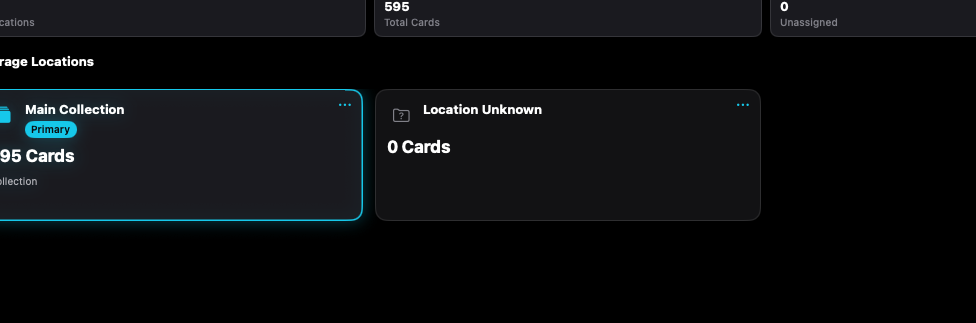
Locations are names you choose, such as a binder or a box, with a card count.
Mac, iPhone, and iPad share the same collection model. Each platform presents those records in a layout that fits its screen.
Same locations and actions, stacked.
Operational steps, controls, and the annotated screen.