Choose Filebutton
Starts an import.
The duplicate rule above it is Increase Quantity When Compatible in the capture.
 Scott's TCG Binder
Import / Export moves collection files and shareable lists.
Import / Export moves collection files and shareable lists.
Mac
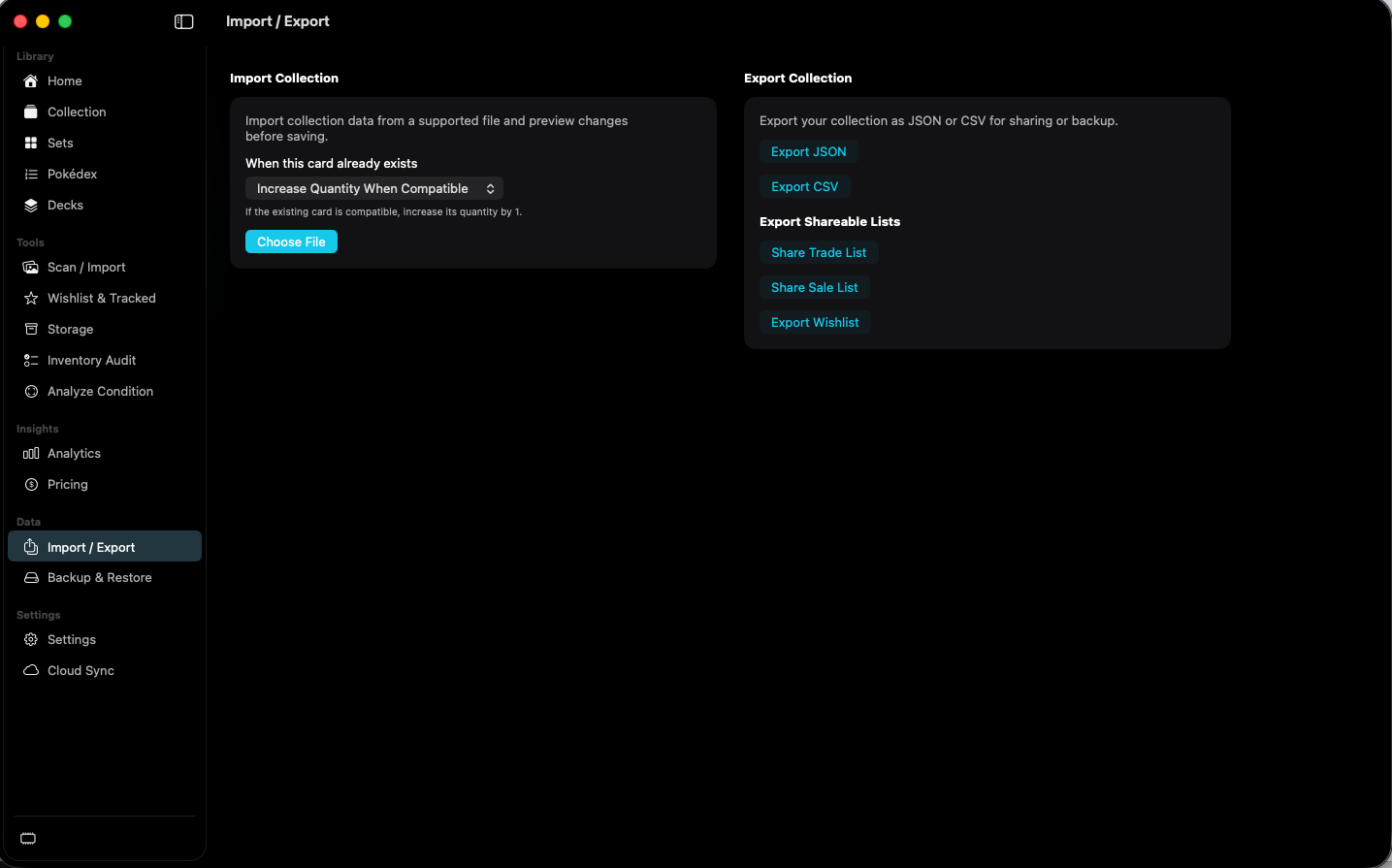
shot desktop-import-export · seq 20 · assets/screenshots/original/desktop/0020.png
iPhone
shot iphone-import-export · seq 126 · assets/screenshots/original/iphone/import-export.png
Additional platform screenshots will be added as this guide is expanded.
Starts an import.
The duplicate rule above it is Increase Quantity When Compatible in the capture.
Writes the collection to a file.
The page says the export is for sharing or backup.
Exports a subset of the collection.
Share Trade List, Share Sale List, and Export Wishlist.
Move collection information when you need to.