Home

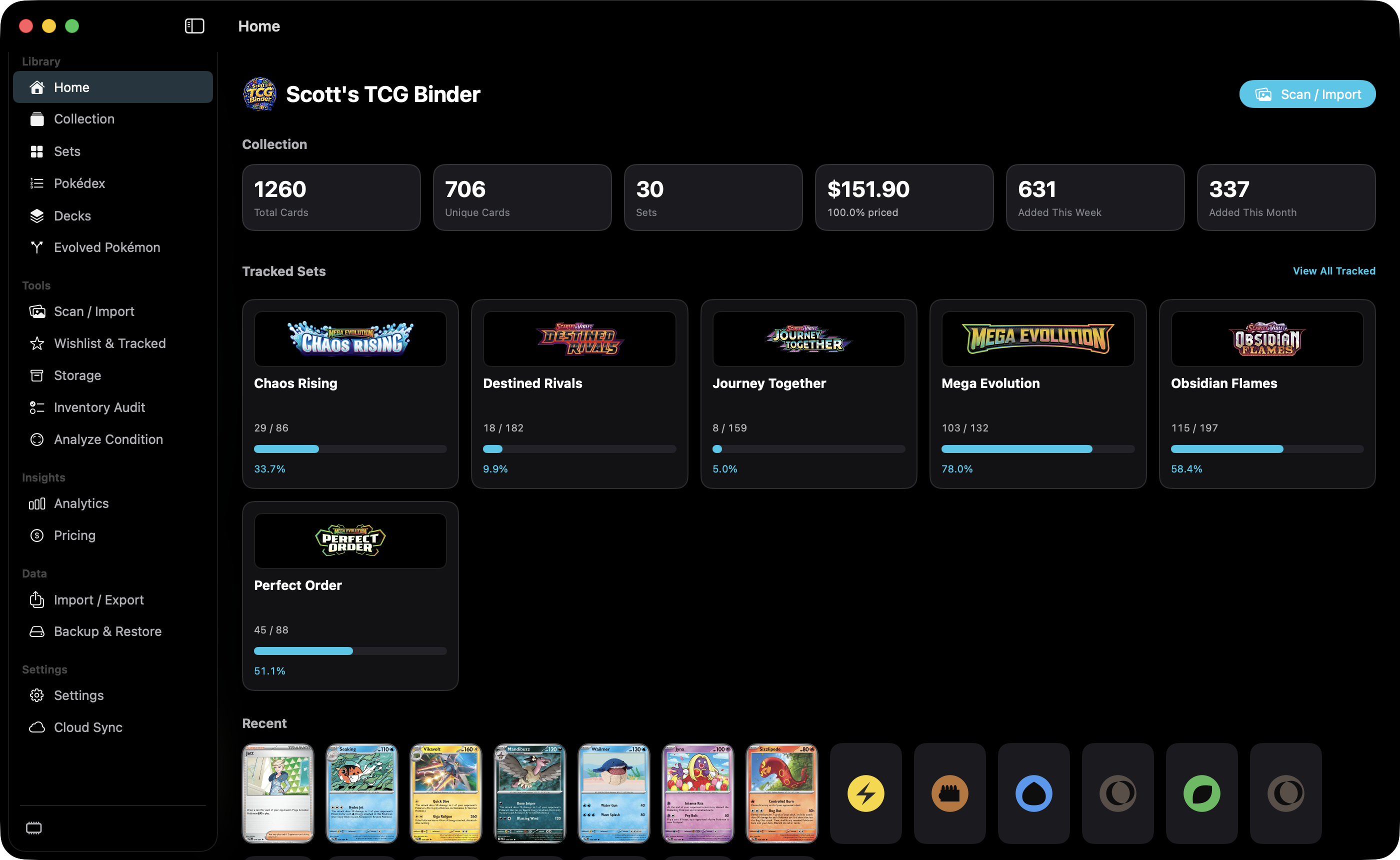
Home is the dashboard. It summarizes the collection, lists tracked sets, and shows recent cards.

AnalyzeMaciPhone

What this screen does

Home is the dashboard. It summarizes the collection, lists tracked sets, and shows recent cards.

Mac

Home dashboard showing collection totals, six tracked sets, and recent cards.
Home. Select a number to read that area.

shot desktop-home · seq 1 · assets/screenshots/original/desktop/0001.png

iPhone

iPhone Home keeps totals, Scan a Card, and tracked sets on the dashboard.

shot iphone-home · seq 101 · assets/screenshots/original/iphone/home.png

Additional platform screenshots will be added as this guide is expanded.

Screen areas

  1. Summary. Total cards, unique cards, sets, estimated value, Added This Week, and Added This Month. Week and month are the current calendar week and calendar month. The counts sum quantity from genuine addition activity—cards added, quantity increases, imports, and restores—using each event’s original time. Synchronizing an existing collection record does not create another addition. Replaying the same activity between devices does not count it again.
  2. Scan / Import. The header button opens Scan / Import.
  3. Tracked Sets. Progress cards for sets you are tracking. View All Tracked opens the Tracked tab.
  4. Recent. Card images for recently added cards.

How to use

  1. Read the summary row for size and value.
  2. Select a tracked set card to open that set, or use View All Tracked.
  3. Use Scan / Import when you are adding cards rather than browsing.

Controls

Scan / Importbutton

Opens Scan / Import from the Home header.

The button is labeled Scan / Import.

View All Trackedlink

Opens the tracked-set list.

Shown at the end of the Tracked Sets row.

Recentlist

Card images added recently.

The capture shows two rows of card art. Selecting one was not captured.

Not fully verified in the capture.